Desktop Helpers
A set of small single-purpose KDE Plasma utilities I built for my own desktop: a one-click updater for the distro ISOs on a Ventoy USB stick, a tray app for checking my Tailscale devices, and a hotkey that switches my monitor's input.
Not every project needs to be big. These are small KDE Plasma utilities I built to remove specific bits of friction from my own desktop, each one doing a single job.
I gave them all the same plain shape on purpose: one small app or script, an installer that puts it in the app launcher, and a window that follows the system theme. I wanted them to feel like part of Plasma rather than something bolted on, and keeping them alike meant each new one could borrow from the last.
Ventoy ISO Updater
I keep a Ventoy USB stick full of Linux distro ISOs for trying distros or reinstalling a PC. Weeks or months pass between uses, so the ISOs go stale, and some (CachyOS in particular) can fail to install when they’re too old.
The Tailscale app below already worked well for me, so I reused the same pattern rather than inventing a new one: a list, an Update button on anything that’s out of date, and an Update all. In my words at the time: “put it in my main PC, click update, done, put it in the target PC and pick from all the latest ISOs without worrying.”
One windowEach distro shows what's on the stick next to the latest release, with an Update button or a progress bar right on its row, so there's nothing to hunt for.
Update one or allI chose to run downloads one at a time, because writing to the stick is the slow part anyway.
Clear endingsWhen the queue finishes, the status line says 'All done. Safe to unplug.' so you know exactly when you can pull the stick.
Designing for trust
Before building anything I wrote down what it must never do, and those rules mattered more than the features: never leave a half-written or broken ISO on the stick, and never delete the old ISO until the new one is fully downloaded and checked.
Every download goes to a hidden temporary file, is checked against the fingerprint the distro publishes, and only then moves into place. The new file goes in before the old one is removed, so a failure at any point can’t leave the stick with neither. The stick had plenty of free space, which made that order affordable.
My first build actually had that order backwards, and pulling the stick mid-download crashed it. A review caught both before I ever relied on it, and each fix now has a test. A cancelled, failed or interrupted download, including pulling the stick out mid-download, never touches the old ISO, and leftover partial files are cleaned up next launch.
Failure is designed to stay local, too. Each distro’s latest version is read from its own website, and one day those sites will change. When one does, that row just says “couldn’t check” in red, with the reason on hover, and every other row keeps working. ISOs it doesn’t recognise are listed greyed out as “unknown ISO” and left alone.
That rule decided one distro. Omarchy doesn’t publish the kind of fingerprint the others do, so it would have been the one download I couldn’t check. I cut it as not worth it. Every source is the distro’s own server or an official mirror, and I skipped the extra signature checks on the rest. My reasoning was that a compromised mirror is the same risk I’d take downloading by hand, so extra checks would add complexity without making it safer than what I already do.
Small UI details
Nothing jumpsRows fill in at different times as each lookup returns, so columns have fixed widths and nothing shifts as it loads. Rows have a fixed height too, after my first real update put one distro's progress bar beside another and I couldn't tell which was updating.
The stick decidesThe edition follows the file already on the stick (Debian netinst, Mint Cinnamon, Fedora KDE and so on), and each always moves to the newest release, so there's nothing to configure.
Versionless filesBazzite's filename has no version, so it's compared by checksum instead. That's slow to work out on a USB stick, so it's done once and remembered on the stick until the file changes.
It started with the other 10 distros already on my stick. Looking for distros to fill the gaps, I added five more (Fedora KDE Plasma, EndeavourOS, elementary OS, Void and NixOS), which made 15. I weighed up whether Debian netinst was the right edition and kept it rather than switching to a live image, since I never boot Debian live anyway. Once the list was set I stopped there: it was already a good collection, and more distros would only mean more sites that can break.
Each lookup is tested against saved copies of the real sites, and a check command runs every lookup live. Since these sites will change, I wanted the eventual fix to be small and obvious rather than a debugging session.
Tailscale Devices
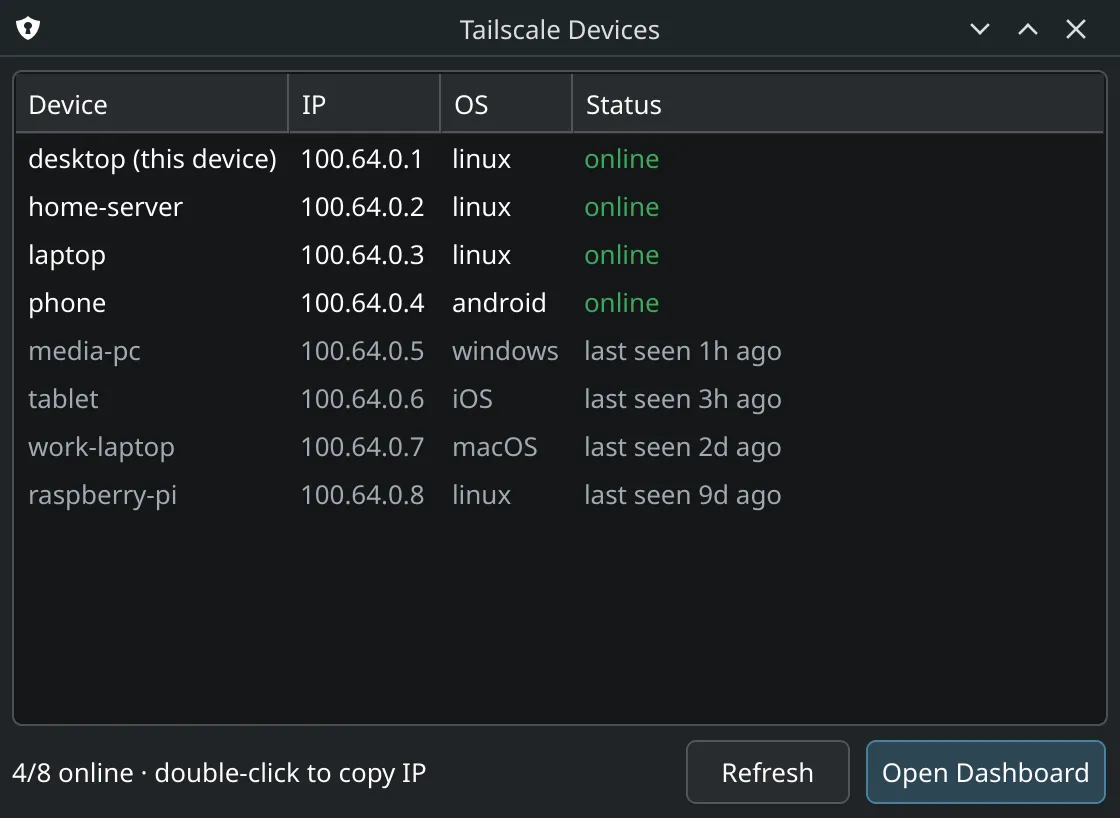
I wanted to see Tailscale’s state at a glance without opening the web console. Tailscale Devices is a tray icon: a shield when connected, a shield with a red cross when it’s stopped, logged out or not running. Hovering shows something like “connected · 2/10 online”.
Left-click opens a window listing every device with its address, system and status. Online devices come first, then offline ones ordered by most recently seen (“last seen 1h ago”), because the question I’m usually asking is “is that machine up?”.
Double-clicking a device copies its address, and Open Dashboard goes to the admin console for anything more. A Log in… button only appears when Tailscale actually needs a login, and opens the pending sign-in link for you.
That button wasn’t in the first version. A couple of weeks later I got logged out for the first time and found the tray could tell me so but gave me no way to fix it, so I added it that evening. Closing the window tucks it back into the tray.
Since it’s meant to run all day, it checks Tailscale every few seconds but only redraws the list while the window is open, so it costs almost nothing in the background. Launching it again just shows the existing window, and it starts hidden in the tray at login. (The devices in the screenshot are sample data.)
Monitor input switch
The smallest of the lot: my ASUS monitor has more than one PC plugged into it. I wanted one key that means “show me this PC”, wherever I’m sitting. Each PC installs the switcher for the input it’s plugged into, bound to the same shortcut, so pressing it brings the screen to whichever PC I’m at.
A hotkey only feels right if it’s instant. The standard command-line tool for this takes a couple of seconds per call, so the script talks to the monitor directly instead, which is close to immediate.
The monitor often drops commands, so the script reads the input back and resends until it really has switched, and shows a notification if it gives up. Without that, a missed press would just look like nothing happened, and I’d never know whether to press again.
Where it’s at
All three are finished, small, and do their one job. Each came together in a day or less, and the Ventoy updater was the only one that got a proper design doc first, because a tool that writes to a USB stick has to be careful.
For me they show the same thing at a smaller scale than my bigger projects: a clear problem, the fewest controls that solve it, and careful thought about what happens when things go wrong.