Mi Gaming Box
An open-source Linux replacement for Xiaomi's Windows-only GamingBox app on the 2018 Mi Gaming Laptop: Turbo fans, keyboard and ambient RGB, the laptop's switches, and the five macro keys Linux otherwise ignores, all worked out by reverse engineering the original app.
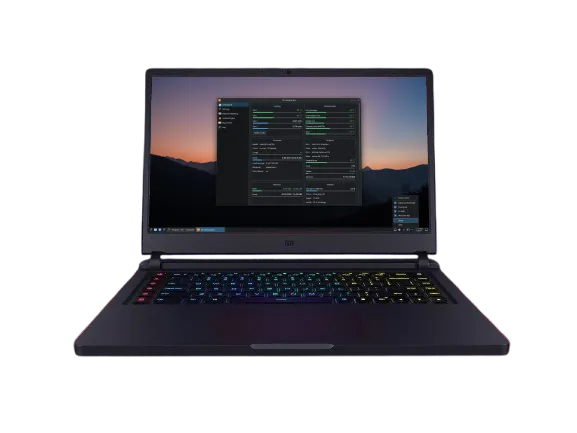
I put Linux on an old Xiaomi Mi Gaming Laptop (the 2018 model) and lost everything that made it a gaming laptop. On Windows, Xiaomi’s GamingBox app runs the Turbo fan mode, the RGB keyboard, the light bars on the back, and five dedicated macro keys.
On Linux none of that works. The fans never go to Turbo, the lighting stays on whatever it was last set to, and the macro keys do nothing at all.
So I built a replacement: a control panel that does everything GamingBox did, designed to feel like it belongs on a KDE desktop instead of looking like a port of a Windows app.
The code is on GitHub under the GPL.
Designing it like System Settings
GamingBox is a typical vendor app: one dark, stylised window. I went the other way and copied the structure of KDE’s own System Settings. There’s a sidebar with a page for each part of the laptop, and standard Breeze controls throughout. Anyone who has changed a setting in KDE already knows how to use it.
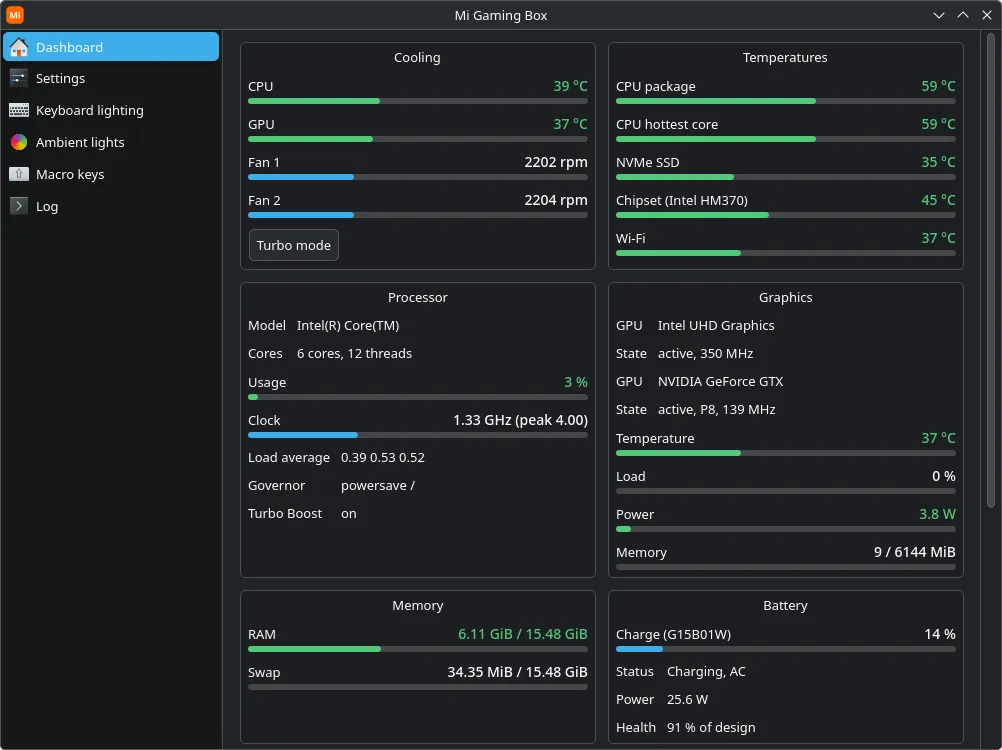
The Dashboard puts the thing you actually came for, the Turbo button, next to the two numbers that tell you whether you need it: fan speeds and the CPU/GPU temperatures. Everything else (processor, both GPUs, memory, battery health, storage) sits underneath for reference.
One detail I cared about: the dashboard only reads the NVIDIA GPU if it’s already awake. Polling a sleeping GPU wakes it up, and a status page shouldn’t be the thing draining your battery.
The lighting and macro pages use a Defaults / Reset / Apply bar along the bottom, like System Settings, so nothing reaches the hardware until you say so. That matters more than usual here, because every change is a write to the laptop’s embedded controller, and as I found out, a wrong write can black out the keyboard until the next power cycle.
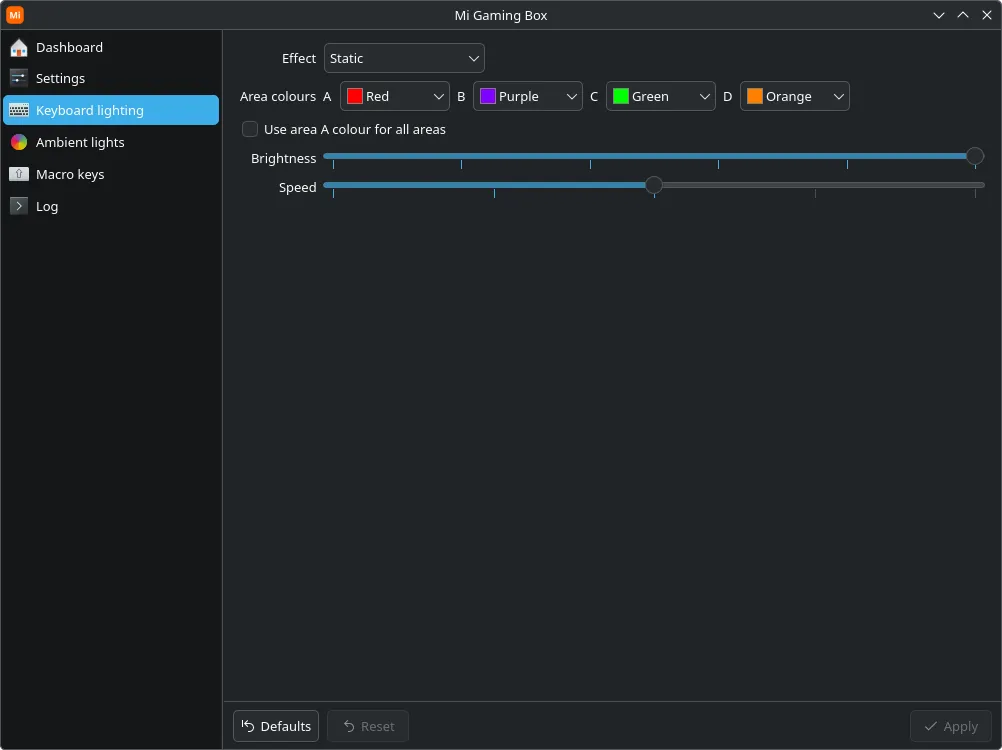
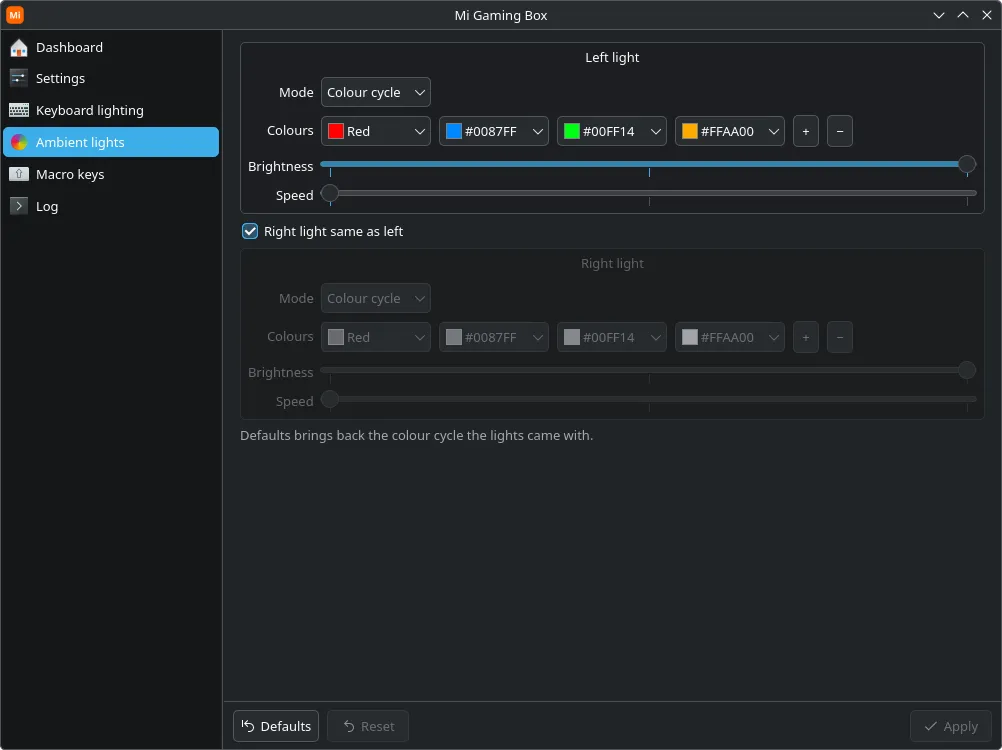
A few smaller choices came from using it day to day. Colour pickers became drop-downs of named colours (with custom colours still available), because four colour-picker dialogs in a row is tedious.
The ambient light page has “Right light same as left” ticked by default, since that’s what almost everyone wants. The common switches (Turbo, Fn lock, Windows key, touchpad, keyboard backlight, GPU on/off) also live in a tray menu, so you rarely need to open the window at all.
Macro keys that do something useful
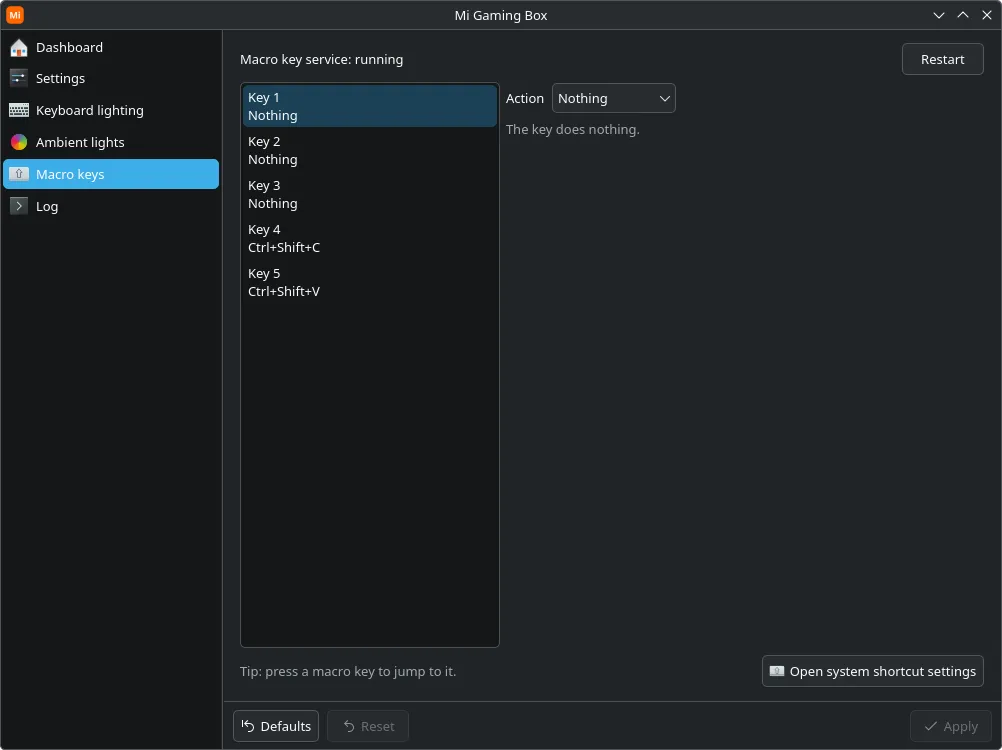
The five macro keys don’t send normal key codes, so Linux ignores them. Each key can now do one of four things:
ShortcutRecorded the same way as in KDE's shortcut settings, and held for as long as you hold the key, so push-to-talk works.
TextTypes a saved piece of text.
CommandRuns a command or script as you, never as root.
MacroA list of shortcuts, text and pauses, played in order.
Pressing a macro key while the page is open jumps to that key, so you never have to work out which one is “Key 3”.
Working out how the hardware talks
There’s no documentation for any of this. To find out how GamingBox controls the hardware, I took apart Xiaomi’s Windows installer and traced how the app talks to the firmware. It turned out everything goes through one small command channel into the laptop’s firmware.
Linux can call those same firmware methods directly. Rather than trust my reading of the installer alone, I cross-checked every command against the laptop’s own firmware tables and then tested each one on the hardware. The full notes are in the repo’s FINDINGS.md.
Some of the hardware’s behaviour only showed up through testing:
Inverted brightnessThe keyboard's brightness register runs backwards: 0 is brightest and 5 is off. Every time I applied 'full brightness' the keyboard went dark. The app now maps 0 (off) to 5 (brightest) and does the conversion itself.
The commit stepWriting a bare effect value blacks the keyboard out until a power cycle. GamingBox actually sends a begin, colour and commit sequence for each zone, and the app now does exactly the same.
Forgotten coloursThe lighting chip forgets its colours at shutdown. A 'Re-apply lighting' option restores them at login, which is how GamingBox handles it on Windows too.
Silent macro keysThe keys raise firmware events that no Linux driver listens for. A small background service picks them up and turns them into ordinary key presses.
Beyond what GamingBox did, I also added an NVIDIA GPU switch and a battery saver. The laptop’s GTX 1060 is too old to power itself down and idles at around 5 W. With the GPU off and battery saver on, the laptop dropped from about 13 W to about 10 W at idle.
Where it’s at
It’s released and installable on Arch-based distros through a PKGBUILD, with make install for Debian, Ubuntu and Fedora.
The tools refuse to touch the firmware on any model they haven’t been tested on, because writing the wrong value to an embedded controller isn’t something I want to happen on someone else’s laptop. A --demo mode runs the whole UI without the hardware, so the interface can be worked on from any machine.
What I like about this one is that the interface was the easy part to get right. Knowing what the controls should be came down to working out what the hardware actually does, and then hiding the quirks so the person using it never has to know brightness runs backwards.